

Before you start
You need:- A project. A dataset lives inside one project. Pipelines and Trainings in that project can select it.
- Your items in a JSON, JSONL, or CSV file, if you want to add data now. The next section gives the exact shape.
Create a dataset
Two paths create a dataset:- On the dataset page. In the project sidebar, open the Datasets section and click the plus button (tooltip Create dataset). The dataset opens with a placeholder name (New Dataset, numbered if one already exists), and its page is the upload zone. The first file you upload renames the dataset to that file’s name.
- Through the agent. Attach a JSON, JSONL, or CSV file in chat and ask the agent to build a dataset from it. The agent creates the dataset and loads the file in one step.
Please upload a JSON, JSONL or CSV file.
A dataset the agent builds keeps the name the agent gives it. Only the dataset page’s first upload renames the dataset to the file’s name. A large file can take a while to load. If the agent’s upload runs long, it keeps loading in the background while the agent moves on.
What the file must look like
A JSON file is an array of objects, with one object per item:tickets.jsonl:
- Up to 1024 MB per file.
- Up to 1024 KB per item.
- Up to 150,000 items in a dataset. The cap counts everything the dataset holds, across the first upload and every append — the screen says “items in file”, but the limit is per dataset.
uploaded, which holds its raw value. The fields you actually filter and label on come from that raw value in the next section.
An upload is all-or-nothing: a file with any invalid item adds nothing to the dataset, and the upload lists up to 50 of the problems for you to fix. Unsupported formats, empty files, files over 1024 MB, and items over 1 MB are rejected. A .json file must have an array root; each nonempty line in a .jsonl file must be a JSON object. The one exception: a valid file that overflows the 150,000-item cap is imported up to the cap, and the upload reports Dataset item cap reached; remaining rows were not imported. The exact messages, with their fixes, are on the errors reference.
Use a dataset for Training
Training reads one chat example from each selected row. For nested conversations, use JSON or JSONL somessages remains an array rather than the text value a CSV upload produces:
messages array with at least one user turn and a final assistant turn containing the expected output. For system messages, tool calls, and other sequence rules, see Training data requirements.
A dataset can instead keep the conversation in a messages field and the expected answer in a label field; the platform appends that label as the final assistant turn for Training. Follow Prepare training data from labels to convert a labeling export into valid Training rows.
Create a Training with --dataset <name-or-id> to prepare its split column and freeze a slice. A dataset without a split column gets an 80% train, 10% validation, 10% test split. Training learns from parts with the train role, uses parts with the validate role for validation, and keeps test rows out of learning. A fresh 10-row dataset gives 8 training rows, 1 validation row, and 1 test row.
The slice fixes the selected rows and their field values. After appending rows, run toloka training update <training> --dataset <dataset> to place them in the split and freeze a new slice, then calculate a new estimate. Items cannot be edited or removed, so to replace bad rows, upload corrected rows to a new dataset and pass that dataset instead. To reuse a ready slice or choose split parts, see Training dataset selections.
Turn the raw upload into fields
The platform reads the items during upload and automatically proposes fields for them. When the first upload finishes, the Infer Fields modal opens on its own, titled Create fields from upload file.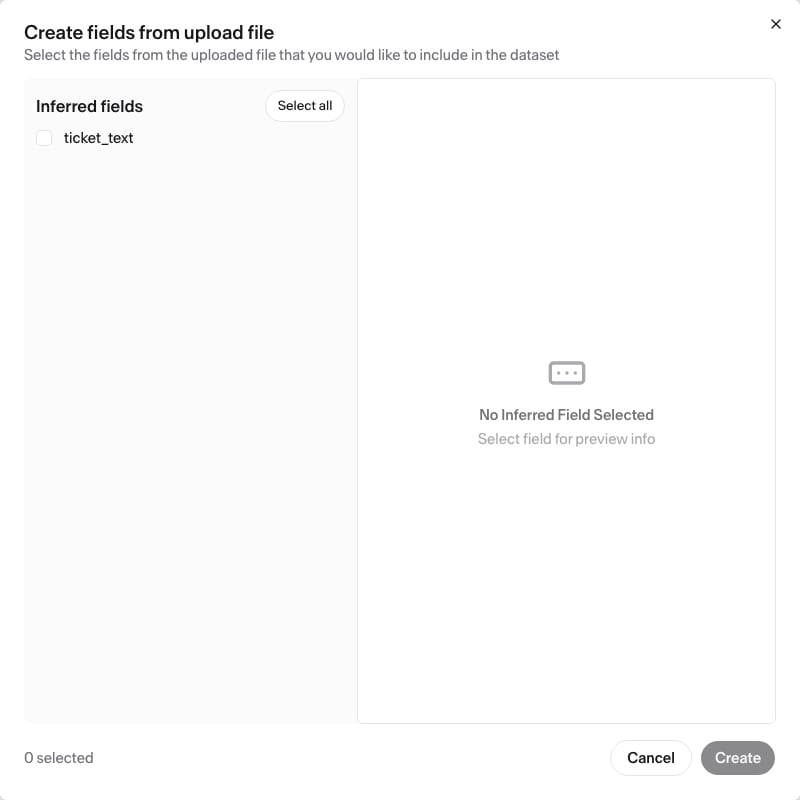
uploaded. The columns fill in afterward. Values populate in the background, so a large dataset’s fields appear gradually. Names already taken in the dataset show struck through in the modal. You can reopen the modal any time with the Infer Fields button. A dataset holds at most 500 fields, and one field holds at most 500 recorded values per item.
The platform skips an item when its raw value has nothing at the field’s location or holds a value that does not fit the field’s type. The item does not fail: it keeps its row and its uploaded value, and has no value for that field. Every later upload re-runs these derivations on the new items automatically, so appended items pick up the same fields.
The modal derives new fields that read from
uploaded at a fixed location. That is the dataset page’s only field-deriving path. The agent can go further: it can read from any location inside the value, give a field its own type, read from a field other than uploaded, and write into a field that already exists. A field name the agent sets must be 1 to 128 characters, start with a lowercase letter, use only lowercase letters, numbers, and underscores, and end with a letter or number.Append more items
Once a dataset has one validated upload, an Append items button appears next to Infer Fields. It opens the same upload zone, titled Append items to dataset. An appended file goes through the same validation as the first. One upload runs at a time per dataset, and a truncated file that stops mid-item fails the upload. Appended items continue the same numbering: item indexes start at 1 and never reset, so a new upload’s items take the next numbers in sequence. The agent appends to an existing dataset the same way, from a file you attach in chat.Browse and filter
The dataset page lists its items under an Items (N) header showing the total count, 100 items per page, with Prev and Next. The table has one column per field, plus an index column. Click a column’s field name to see its JSON schema, its description, its field ID, and its largest stored revision. A cell shows a preview truncated at 120 characters. A value too large to preview shows a view value link and loads when you click it. A field with more than one recorded value is marked(N rev); opening it lists every value, latest first.
To filter items:
- Open the funnel on the field’s column.
- Set JSONPath to a location in the value, choose
=or≠under Operator, and enter a Value. - Optionally select Latest revision only to match each item’s newest recorded value, choose a source under Created by, or select No revision for this field to find items with no value for it.
- Click Apply.
≠ with an empty Value matches any existing value. Clear removes the filter. The Start node uses the same filters to choose which items a pipeline run launches; see the Start node’s item filter.
Value filtering is unavailable for a field whose largest value is over 32 KB. A notice says so, and you can still filter that field by source or by missing value.
Export fields to file
The Export fields to file section on the dataset page exports the dataset’s own fields. Pick the fields to include and click Export selected fields. The platform generates a JSON file in the background. When its badge turns tocompleted, use the Download link on that export’s row.
The agent can export too, writing the fields you name to a file in its workspace. To export a pipeline run’s results, use the run’s Items tab instead. See Export your labeled results.
Rename or hide a dataset
The ⋯ menu on the dataset header has Rename dataset and Hide Dataset — on an already-hidden dataset the second item reads Show Dataset, and ahidden badge sits next to the name. Renaming opens an Edit dataset name dialog. The agent can rename a dataset too.
Hiding a dataset removes it from the sidebar’s Datasets list. The dataset still exists and still feeds any pipeline bound to it, but it becomes invisible to the agent: every agent operation on a hidden dataset fails until you unhide it. To see hidden datasets again, turn on Show hidden datasets (the eye toggle on the Datasets section). Hiding is a dataset-page action. The agent cannot hide a dataset.
What this does not do
- No hand-editing of item values. The table is read-only, and nothing changes a value an item already holds. A new value arrives from an upload, a field derivation, a pipeline run writing its results back, or the agent importing values from a file into fields that are still empty — already-populated pairs are skipped.
- No deleting items or datasets. You can hide a dataset, but nothing removes a dataset or an individual item.
- Pipelines and Trainings select rather than copy datasets. A Start node binds a pipeline to a project dataset and chooses the items a run launches. A Training draft reads train and validation parts from one frozen dataset slice.
Related
- Prepare training data from labels — turn labeled results into valid Training rows
- Fields and data — understand the field, item, and value model
- Start and End nodes — bind a pipeline to a dataset and filter launch items
- Fine-tune a model — use labeled conversations for supervised fine-tuning
- Compress a prompt with gisting — use examples and a prompt for gisting
- Label a large dataset in batches — upload each batch as its own dataset
- Get your first labeled dataset — follow the attach-and-build flow end to end
- Dataset and pipeline errors — fix upload, append, and filter errors